
How to Activate an eSIM on Android: Step-by-Step Travel Guide
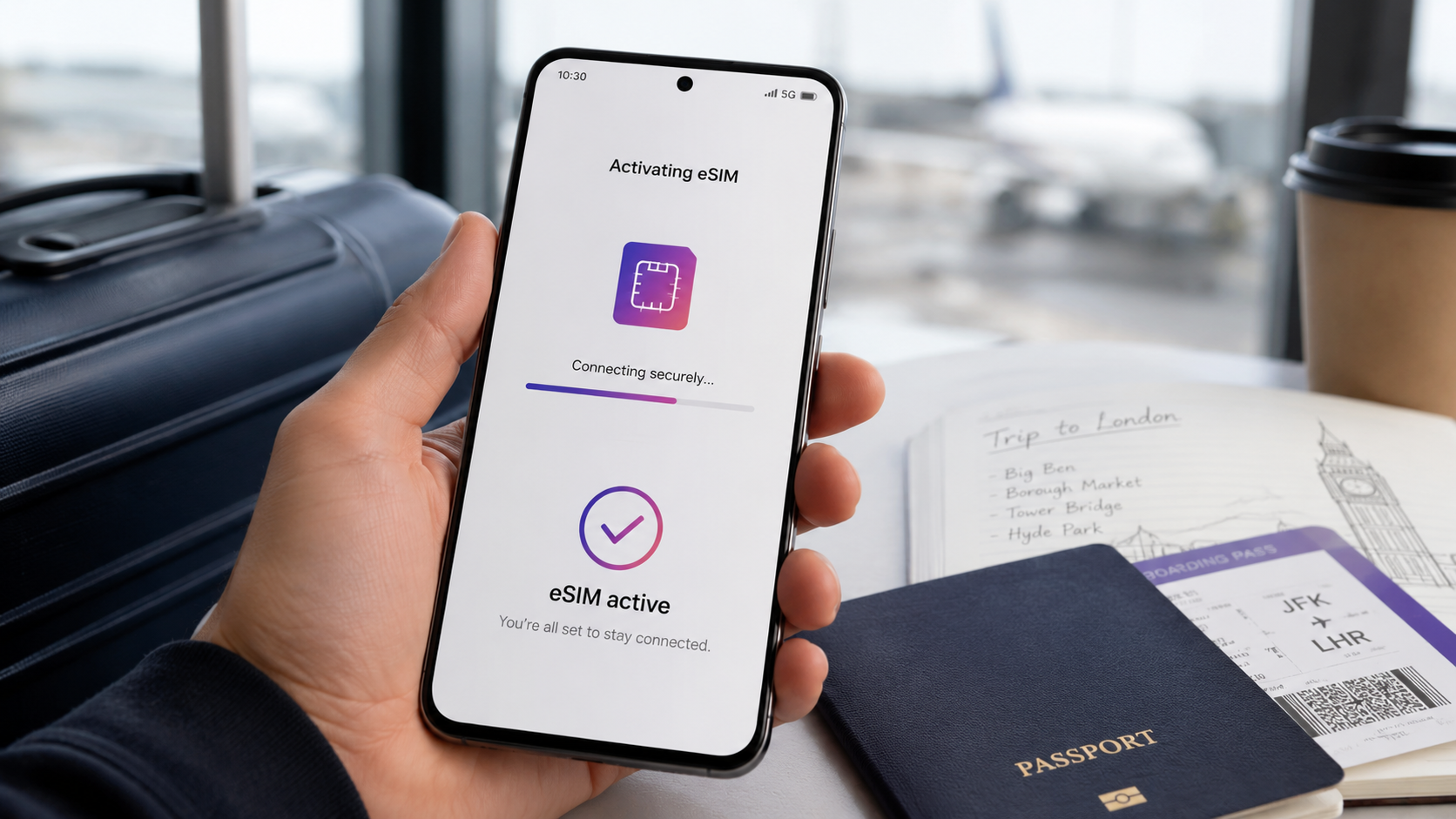
Traveler activating an eSIM on an Android phone before an international trip
How to Activate an eSIM on Android: Step-by-Step Travel Guide
If you are preparing for a trip abroad, learning how to activate eSIM on Android before you leave can make your arrival much easier. Instead of searching for a local SIM card shop at the airport, you can buy a travel eSIM online, install it digitally, and use mobile data abroad Android users need for maps, messages, ride-hailing, bookings, email, and travel apps.
An eSIM is a digital SIM that works without a physical SIM card. On many Android phones, you can add it through your phone settings, scan an eSIM QR code, or use an app-based setup flow. The exact steps depend on your Android brand, model, software version, and carrier-lock status.
This guide explains how to activate an eSIM on Android, including Samsung Galaxy and Google Pixel phones, plus practical travel settings to check before you fly.
Before You Activate an eSIM on Android: Quick Checklist
Before installing or activating an Android travel eSIM, check these basics:
- Your Android phone supports eSIM.
- Your phone is unlocked and can use another provider’s eSIM.
- Your phone software is up to date.
- You have stable Wi-Fi for installation.
- You have your eSIM QR code, app setup, or manual activation details.
- You know when your plan validity starts.
- You know which SIM line should be used for mobile data abroad.
duasim’s compatibility checker recommends checking Android support by going to Settings > Connections/Network, looking for SIM card manager or SIM cards, and confirming whether Add eSIM appears. (duasim)
How to Check If Your Android Phone Supports eSIM
Not every Android phone supports eSIM. Even if your phone is new, support can depend on the exact model, region, and carrier version.
To check eSIM support on Android:
- Open Settings.
- Go to Connections, Network & internet, or Mobile Network.
- Tap SIM card manager, SIMs, or SIM cards.
- Look for Add eSIM, Add mobile plan, or Set up an eSIM.
- Check whether your device has an EID number under device information.
If you see an option to add an eSIM, your phone likely supports eSIM. If the option is missing, use the duasim compatibility checker or check your device manufacturer’s official support page before buying.
How to Activate eSIM on Android: General Steps
Android menus vary, but the activation process usually follows the same pattern.
Step 1: Connect to Wi-Fi
You usually need internet access to download the eSIM profile. Use a stable Wi-Fi connection before you start.
Step 2: Open your mobile network settings
Depending on your Android phone, go to one of these paths:
- Settings > Network & internet > SIMs
- Settings > Connections > SIM manager
- Settings > Mobile Network > SIMs
Step 3: Add your eSIM
Tap one of the following options:
- Add eSIM
- Add SIM
- Add mobile plan
- Download a SIM
- Set up an eSIM
Step 4: Scan your eSIM QR code
If your provider gives you an eSIM QR code, choose the QR-code option and scan it with your phone camera.
Step 5: Follow the on-screen instructions
Your Android phone will download the eSIM profile and ask you to confirm installation.
Step 6: Label your eSIM
Give it a clear name, such as:
- Travel Data
- duasim Travel
- Europe eSIM
- Asia eSIM
- Business Travel
This helps you avoid using the wrong SIM line abroad.
Step 7: Set your travel eSIM as mobile data
When you arrive, select your travel eSIM as the mobile data line. This tells your phone to use the travel eSIM for internet.
How to Activate a Samsung eSIM
Samsung Galaxy phones use slightly different menu names from Google Pixel and other Android phones. Samsung’s official setup guide says to open Settings, tap Connections, tap SIM card manager, then tap Add mobile plan and follow the on-screen instructions. Samsung also says users with a QR code can go to Connections > SIM card manager > Add mobile plan > Scan carrier QR code. (Samsung)
Samsung eSIM setup steps
- Open Settings.
- Tap Connections.
- Tap SIM card manager.
- Tap Add eSIM or Add mobile plan.
- Choose Scan QR code if prompted.
- Scan the eSIM QR code.
- Follow the on-screen instructions.
- Select the eSIM for mobile data when you travel.
Samsung notes that eSIM availability can vary depending on region, service provider, and model, so users should check their exact device before buying. (Samsung)
How to Activate a Google Pixel eSIM
Google Pixel phones usually use the Network & internet menu. Google’s official Pixel Help guide says users can set up an eSIM from Settings by going to Settings > Network & internet > SIMs > Add SIM > Set up an eSIM, then following the on-screen instructions. (Google Help)
Pixel eSIM setup steps
- Open Settings.
- Tap Network & internet.
- Tap SIMs.
- Tap Add SIM.
- Tap Set up an eSIM.
- Scan the QR code or follow the setup instructions.
- Choose the eSIM as your mobile data line when needed.
Google also notes that setup steps can differ slightly depending on the carrier. (Google Help)
Activating an eSIM With the duasim App
For travelers, app-based setup can make the process easier because your plan, QR code, and order details are kept in one place.
The duasim Google Play listing describes the process as checking compatibility, choosing your destination, picking a plan, paying securely, installing the eSIM by QR code or manually, and activating when you arrive. It also says the app offers instant eSIM data plans for over 200 countries and regions. (Google Play)
A simple duasim app flow looks like this:
- Download or open the duasim app.
- Choose your travel destination or region.
- Select one of the available duasim eSIM plans.
- Complete secure checkout.
- Install your eSIM using the app, QR code, or manual details.
- Activate or use the eSIM according to the plan instructions.
- Set the duasim eSIM as your mobile data line while traveling.
This gives Android users an easier eSIM setup experience, especially when preparing before a trip.
When Should You Activate Your Android Travel eSIM?
For most travelers, the safest approach is to buy and install the eSIM before departure while you have reliable Wi-Fi. But activation timing can vary by plan.
Some eSIM plans start their validity period when installed. Others start when activated or when they first connect to a supported network in the destination. Always read the plan instructions before installing or activating.
A practical travel approach:
- Buy your travel eSIM before you fly.
- Check when the validity period starts.
- Install the eSIM on Wi-Fi before departure if allowed.
- Activate or connect when you arrive, depending on the plan.
- Set the eSIM as your mobile data line abroad.
Android Settings to Check Before You Travel
Installing the eSIM is only part of the process. To use mobile data abroad Android users should also check their SIM settings.
Select your travel eSIM for mobile data
Go to your SIM settings and choose your travel eSIM as the preferred SIM for mobile data. This helps your phone use your travel data plan instead of your home carrier’s roaming data.
Turn off data roaming on your main SIM
If you do not want roaming charges from your home carrier, turn off data roaming on your main SIM. Some travel eSIMs may require data roaming to be enabled on the eSIM line itself, so follow the plan instructions carefully.
The key is to avoid letting your home SIM use roaming data by accident.
Keep your main number active if needed
Many Android phones support dual SIM setups, meaning you can keep your home number active for calls, SMS, banking codes, or WhatsApp while using your travel eSIM for data.
Turn off automatic data switching
Some phones can switch to another SIM if the preferred data SIM has weak signal. If you want to avoid roaming, check that automatic data switching is turned off or configured correctly.
Common Android eSIM Mistakes to Avoid
Buying before checking compatibility
Always confirm that your Android phone supports eSIM before buying. Use the duasim compatibility checker or your device manufacturer’s support page.
Choosing the wrong QR code method
Some Android phones ask whether you want to scan a QR code, download a SIM, or enter details manually. Choose the method that matches the information you received.
Installing without Wi-Fi
eSIM installation usually needs internet access. Install before travel or while connected to stable Wi-Fi.
Forgetting to select the eSIM for mobile data
Your eSIM may be installed correctly but not used for internet. Make sure it is selected as the mobile data line.
Leaving your home SIM on for data roaming
If your home SIM remains selected for data, your carrier may charge roaming fees. Check your SIM settings before using mobile data abroad.
Deleting the eSIM too early
Do not delete your eSIM unless you are finished using it. Some eSIMs cannot be reinstalled after deletion without a new activation code.
Troubleshooting: Why Is My Android eSIM Not Working?
If your Android eSIM does not install or connect, check these points:
- Is your phone eSIM compatible?
- Is your phone unlocked?
- Is your software updated?
- Are you connected to Wi-Fi?
- Did you scan the correct eSIM QR code?
- Was the QR code already used?
- Is the eSIM selected for mobile data?
- Are you in a covered destination?
- Does the eSIM line require data roaming to be enabled?
- Have you restarted your phone?
For Pixel users, Google recommends trying again if there is an issue with eSIM transfer and contacting the carrier for persistent issues. (Google Help)
Why Use a Travel eSIM from duasim on Android?
A travel eSIM from duasim is designed for travelers who want mobile data abroad without changing physical SIM cards. The duasim website highlights eSIM connectivity in 200+ countries, no physical SIM card, instant delivery, and a simple scan-and-connect setup process. (duasim)
duasim may be useful if you want:
- An Android travel eSIM for your destination
- Country, regional, or global eSIM options
- Easy eSIM setup
- Instant activation options
- No physical SIM card
- App-based eSIM management
- Mobile data abroad for maps, messages, travel apps, and work
Before buying, check device compatibility, destination coverage, data amount, validity, and activation instructions.
FAQ: How to Activate eSIM on Android
How do I activate eSIM on Android?
To activate eSIM on Android, connect to Wi-Fi, open your SIM or mobile network settings, tap Add eSIM, Add SIM, or Add mobile plan, scan your eSIM QR code, and follow the on-screen instructions.
How do I activate eSIM on Samsung?
On Samsung Galaxy, go to Settings > Connections > SIM card manager > Add mobile plan. If you have a QR code, Samsung says you can choose Scan carrier QR code and scan the code provided by your service provider. (Samsung)
How do I activate eSIM on Google Pixel?
On Google Pixel, go to Settings > Network & internet > SIMs > Add SIM > Set up an eSIM, then follow the on-screen instructions. (Google Help)
Can I activate an eSIM with a QR code?
Yes. Many Android phones let you activate an eSIM by scanning an eSIM QR code from your provider.
Do all Android phones support eSIM?
No. eSIM support depends on the Android brand, model, region, and carrier version. Check your phone settings or use the duasim compatibility checker before buying.
Should I install my Android travel eSIM before I fly?
Usually, yes. It is best to install your eSIM while you have reliable Wi-Fi before your trip. Just check when your plan validity starts before activating it.
Can I keep my normal number while using a travel eSIM?
In many cases, yes. Many Android phones support dual SIM, allowing your main number to stay active while your travel eSIM handles mobile data.
Conclusion: Activate Your Android eSIM Before You Travel
Learning how to activate eSIM on Android before travel can help you arrive prepared. Start by checking compatibility, choose your destination, buy your travel eSIM, install it on Wi-Fi, and set it as your mobile data line when you arrive.
Whether you use Samsung, Google Pixel, or another Android phone, the most important steps are the same: confirm eSIM support, follow the correct setup path, scan your QR code or use the app instructions, and make sure your phone uses the travel eSIM for data abroad.
Before your next trip, visit duasim.com, use the compatibility checker, or open the duasim app to choose and buy the duasim eSIM plan that fits your destination.