
How to Install an eSIM on iPhone Before You Travel
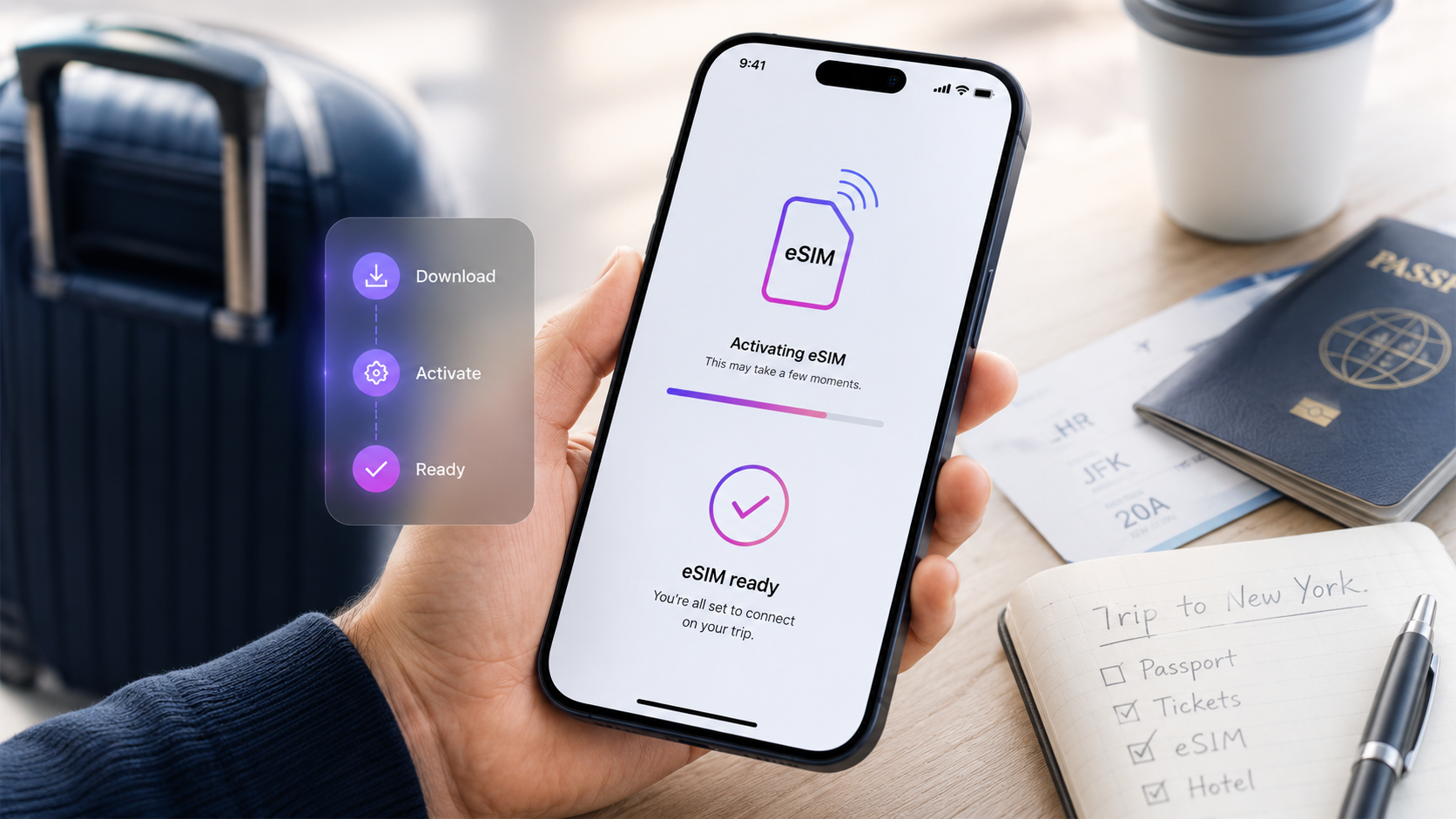
Traveler installing an eSIM on iPhone before an international trip
How to Install an eSIM on iPhone Before You Travel
Installing an eSIM on your iPhone before you travel is one of the easiest ways to prepare mobile data for your trip. Instead of buying a physical SIM card after arrival or depending on expensive roaming, you can install a digital eSIM plan before departure and use mobile data when you need it abroad.
A travel eSIM is especially useful because it lets you keep your regular SIM card in your iPhone while using a separate prepaid data plan for your destination. This means you can stay connected for maps, messages, bookings, transport apps, translation tools, and travel updates without changing plastic SIM cards.
This guide explains how to install an eSIM on iPhone before you travel, how to check compatibility, what settings to choose, and how to avoid common setup mistakes.
What is an eSIM on iPhone?
An eSIM is a digital SIM built into your iPhone. Instead of inserting a physical SIM card, you install an eSIM profile digitally and use it as a mobile data plan.
For travel, this means you can buy a prepaid eSIM plan for your destination and install it on your iPhone before you leave. Once you arrive, you can select the eSIM for mobile data and connect to supported networks abroad.
If you are new to eSIM technology, read our guide explaining what a travel eSIM is and how it works before installing your plan.
Why install an eSIM before you travel?
It is usually best to install your eSIM before departure while you still have stable Wi-Fi. This gives you time to complete the setup calmly, check your iPhone settings, and avoid problems after landing.
Installing your travel eSIM before you travel can help you:
- prepare mobile data before arrival
- avoid searching for a local SIM card
- keep your regular SIM card in your iPhone
- reduce dependence on public Wi-Fi
- avoid expensive roaming data
- use maps, messages, and travel apps abroad
- fix setup issues before your trip starts
If you wait until you arrive, you may need airport Wi-Fi or hotel Wi-Fi to complete the setup. That can be stressful if the connection is slow, unstable, or unavailable.
Check if your iPhone supports eSIM
Before buying or installing a travel eSIM, make sure your iPhone supports eSIM. Many newer iPhone models support eSIM, but support can depend on the model, region, carrier lock status, and software version.
You can check if your iPhone supports eSIM before choosing a plan.
You can also check directly on your iPhone:
- Open Settings.
- Tap General.
- Tap About.
- Look for eSIM, digital SIM, or available SIM information.
- You can also go to Settings > Cellular or Settings > Mobile Data and look for Add eSIM.
Your iPhone should also be unlocked. If your iPhone is locked to one mobile operator, it may not accept another eSIM plan. If you are unsure, contact your mobile operator before buying a travel eSIM.
Choose the right eSIM plan before installing
Before installation, choose an eSIM plan that fits your trip. The right plan depends on your destination, route, trip length, and how much data you expect to use.
If you are visiting one country, a country-specific eSIM may be enough. If you are visiting several countries, a regional or global plan may be better.
You can browse duasim eSIM plans by destination and choose a prepaid plan that matches your trip.
Before buying, check:
- destination coverage
- data amount
- validity period
- when the plan activates
- whether hotspot is supported
- whether your iPhone supports eSIM
- whether your iPhone is unlocked
If you are unsure how much data to choose, read our guide on how much mobile data you need when traveling abroad.
What you need before installing an eSIM on iPhone
Before you start installing your eSIM, make sure you have everything ready.
You need:
- an eSIM-compatible iPhone
- an unlocked device
- a stable Wi-Fi connection
- your eSIM QR code or activation details
- enough battery or a charger nearby
- updated iPhone software
- your travel destination plan
It is also a good idea to keep your eSIM instructions open on another device if you need to scan a QR code with your iPhone. If the QR code is displayed on the same iPhone, you may need to use manual activation details or another supported installation method.
How to install an eSIM on iPhone with a QR code
Many travel eSIMs are installed using a QR code. This is one of the most common setup methods.
To install an eSIM on iPhone with a QR code:
- Connect your iPhone to Wi-Fi.
- Open Settings.
- Tap Cellular or Mobile Data.
- Tap Add eSIM.
- Choose Use QR Code.
- Scan the QR code provided with your eSIM.
- Follow the on-screen instructions.
- Add the eSIM to your iPhone.
- Label the eSIM clearly, for example “Travel” or “duasim”.
- Choose your preferred default lines for calls, messages, and mobile data.
After installation, do not remove the eSIM unless you are sure you no longer need it. Deleting an eSIM can remove the installed profile from your iPhone.
How to install an eSIM manually on iPhone
If you cannot scan the QR code, you may be able to install the eSIM manually using activation details.
To install an eSIM manually:
- Open Settings.
- Tap Cellular or Mobile Data.
- Tap Add eSIM.
- Choose Use QR Code.
- Look for an option such as Enter Details Manually.
- Enter the activation information provided with your eSIM.
- Follow the on-screen instructions.
- Label the eSIM and choose your preferred settings.
Manual installation can be useful if your QR code is on the same iPhone, if your camera cannot scan it, or if you are setting up the eSIM from written activation details.
How to label your travel eSIM
After installing your eSIM, your iPhone may ask you to label your lines. This helps you know which SIM is used for your normal number and which one is used for travel data.
You can label your regular SIM as:
- Primary
- Personal
- Main
- Home
You can label your travel eSIM as:
- Travel
- duasim
- Europe
- Data
- Destination name
Clear labels make it easier to avoid using the wrong SIM for mobile data abroad.
Which line should you use for mobile data?
When traveling, you usually want your travel eSIM to be selected for mobile data. Your regular SIM can stay active for calls and messages if you want to keep your normal number available.
On iPhone, check this before you travel:
- Open Settings.
- Tap Cellular or Mobile Data.
- Tap Cellular Data or Mobile Data.
- Select your travel eSIM for mobile data.
- Turn off automatic mobile data switching if you want to avoid accidental roaming on your primary SIM.
This is important because your iPhone may otherwise switch between SIM lines depending on signal or settings.
Should you keep your normal SIM active?
In many cases, yes. You can often keep your normal SIM active while using your travel eSIM for mobile data. This is useful if you need to receive calls, SMS, or bank verification messages on your normal number.
However, keeping your regular SIM active can still create costs if you use calls, SMS, voicemail, or roaming data from your home operator.
To reduce the risk of unexpected charges:
- use the travel eSIM for mobile data
- turn off data roaming on your primary SIM
- avoid answering or making traditional calls if they are expensive abroad
- use internet-based messaging and calling apps when possible
- check your operator’s roaming rules before travel
For more practical tips, read our guide on how to avoid roaming charges when traveling abroad.
Should data roaming be on or off?
This is one of the most common questions when using an eSIM abroad.
For your primary SIM, data roaming should usually be off if you want to avoid roaming charges from your home operator.
For your travel eSIM, data roaming may need to be on for the eSIM to connect to supported networks abroad. This depends on the plan and setup instructions.
A simple rule:
- primary SIM data roaming: usually off
- travel eSIM data roaming: on if required by the eSIM instructions
Always make sure your iPhone is using the travel eSIM for mobile data, not your primary SIM.
When should you activate your eSIM?
Installation and activation are not always the same thing. In many cases, you can install your eSIM before departure and activate or start using it when you arrive.
However, activation rules can vary by plan. Some plans may start when installed, while others may start when they first connect to a supported network in the destination.
Before installing, check the plan details and instructions so you understand when the validity period begins.
A safe approach is to:
- buy your eSIM before departure
- install it while connected to Wi-Fi
- keep it turned off if you are not ready to use it
- turn it on when you are ready to connect abroad
- check the activation rules for your specific plan
If you need help, visit the duasim eSIM FAQ and support page.
How to turn on your eSIM when you arrive
When you arrive at your destination, check your iPhone settings before using mobile data.
To turn on your travel eSIM:
- Open Settings.
- Tap Cellular or Mobile Data.
- Select your travel eSIM.
- Turn on the eSIM line if it is off.
- Set the travel eSIM as your mobile data line.
- Enable data roaming for the eSIM line if required.
- Wait for your iPhone to connect to a supported network.
Then test mobile data by opening a map, browser, or messaging app.
How to avoid using the wrong SIM for data
Using the wrong SIM for mobile data can lead to roaming charges. Before using mobile data abroad, check your settings carefully.
Make sure that:
- your travel eSIM is selected for mobile data
- mobile data switching is turned off if you do not want automatic switching
- data roaming is off on your primary SIM
- data roaming is on for your eSIM only if required
- your regular SIM is not being used for background data
- your eSIM line is clearly labeled
This setup helps you use prepaid eSIM data instead of accidental roaming from your home plan.
What if your eSIM does not install?
If your eSIM does not install, do not delete anything immediately. First, check the basics.
Common reasons an eSIM may not install include:
- your iPhone does not support eSIM
- your iPhone is locked to one mobile operator
- you are not connected to stable Wi-Fi
- the QR code has already been used
- the activation details were entered incorrectly
- your iPhone software needs an update
- the eSIM was removed after installation
- the plan is not compatible with your device or region
Try restarting your iPhone, checking your Wi-Fi connection, updating iOS, and confirming that your device supports eSIM. You can also check the duasim eSIM FAQ and support page for help.
What if your eSIM installs but mobile data does not work?
If your eSIM installs but mobile data does not work after arrival, check your settings before assuming the plan is faulty.
Try these steps:
- Make sure the eSIM line is turned on.
- Make sure the eSIM is selected for mobile data.
- Enable data roaming for the eSIM line if required.
- Turn airplane mode on and off.
- Restart your iPhone.
- Check that you are in a covered destination.
- Make sure your plan has not expired.
- Check whether you have remaining data.
- Try selecting a network manually if needed.
Many connection problems are caused by mobile data settings, roaming settings, or network selection.
Can you install more than one eSIM on iPhone?
Many iPhone models can store multiple eSIM profiles, but the number of active eSIMs depends on the model. Some iPhones can have more than one eSIM stored but only one or two active lines at the same time.
This can be useful for frequent travelers. You may be able to keep different eSIM profiles for different destinations and activate the one you need for a specific trip.
Before installing several eSIMs, check your iPhone model and settings so you understand how many active lines it supports.
Can you use hotspot with an iPhone travel eSIM?
Hotspot availability depends on your eSIM plan, iPhone settings, and network support. If hotspot is supported, you can share your iPhone’s mobile data with another device, such as a laptop or tablet.
Be careful with hotspot while traveling because connected devices can use data quickly. Laptops may sync files, update software, load large websites, or download attachments automatically.
If you plan to use hotspot, choose a data plan with enough allowance and monitor usage carefully.
How much data do you need for your iPhone eSIM?
The right amount of data depends on how you use your iPhone abroad.
Light users may only need a small data plan for maps, messages, and browsing. Moderate users may need more data for social media, travel apps, email, and occasional video calls. Heavy users may need a larger plan for hotspot, remote work, streaming, or frequent uploads.
As a simple guide:
- 1 GB to 3 GB: short trips and light use
- 3 GB to 10 GB: regular travel use
- 10 GB to 20 GB: longer trips, hotspot, and frequent app use
- 20 GB or more: remote work, heavy hotspot, streaming, or long stays
To choose more confidently, read our guide on how much mobile data you need when traveling abroad.
Why choose duasim for your iPhone travel eSIM?
duasim is designed for travelers who want a simple way to get mobile data abroad without changing physical SIM cards or depending on traditional roaming. You can choose a prepaid eSIM plan before your trip, install it digitally on your iPhone, and use mobile data while traveling.
With duasim, you can:
- check iPhone eSIM compatibility
- browse prepaid eSIM plans for destinations worldwide
- choose country, regional, or global coverage
- install your eSIM digitally
- keep your regular SIM card in your iPhone
- use mobile data abroad without changing plastic SIM cards
- manage your travel connectivity more easily
For easier access on your phone, you can also download the duasim app and manage your eSIMs while traveling.
Conclusion: install your iPhone eSIM before you leave
Installing an eSIM on your iPhone before you travel can make your trip much easier. Instead of looking for a local SIM card after arrival or depending on expensive roaming, you can prepare your mobile data in advance and connect when you need it.
Before you buy a plan, check that your iPhone supports eSIM and is unlocked. Then choose a prepaid eSIM plan that fits your destination, trip length, and data needs. Install it while connected to stable Wi-Fi, label your lines clearly, and make sure your travel eSIM is selected for mobile data when you are abroad.
With the right setup, your iPhone can keep your normal SIM active while using your travel eSIM for mobile data. Before your next trip, you can check your iPhone eSIM compatibility, then choose a prepaid eSIM plan for your destination.
FAQ: Installing an eSIM on iPhone
How do I install an eSIM on iPhone?
To install an eSIM on iPhone, connect to Wi-Fi, open Settings, tap Cellular or Mobile Data, tap Add eSIM, choose Use QR Code, scan your eSIM QR code, and follow the on-screen instructions.
Can I install an eSIM on iPhone before traveling?
Yes. It is usually best to install your eSIM before traveling while you have stable Wi-Fi. Then you can turn it on or select it for mobile data when you are ready to use it abroad.
Which iPhones support eSIM?
Many newer iPhone models support eSIM, but support depends on model, region, and carrier lock status. You can use the duasim eSIM compatibility checker to check your exact iPhone.
Do I need Wi-Fi to install an eSIM on iPhone?
Yes, you usually need a stable internet connection to install an eSIM. It is best to use Wi-Fi during installation.
Should I remove my normal SIM card when using an eSIM?
No, you usually do not need to remove your normal SIM card. Many iPhones allow you to keep your regular SIM active while using a travel eSIM for mobile data.
Should data roaming be on for an iPhone eSIM?
Data roaming should usually be off for your primary SIM if you want to avoid roaming charges. For your travel eSIM, data roaming may need to be on if required by the plan instructions.
What should I do if my iPhone eSIM does not work?
Check that your eSIM line is turned on, selected for mobile data, and allowed to use data roaming if required. Also check Wi-Fi, iOS updates, device compatibility, destination coverage, and remaining data.
Where can I buy an eSIM for iPhone travel?
You can browse duasim prepaid eSIM plans and choose a country, regional, or global plan for your trip.