
How to Activate an eSIM on Android: Step-by-Step Travel Guide
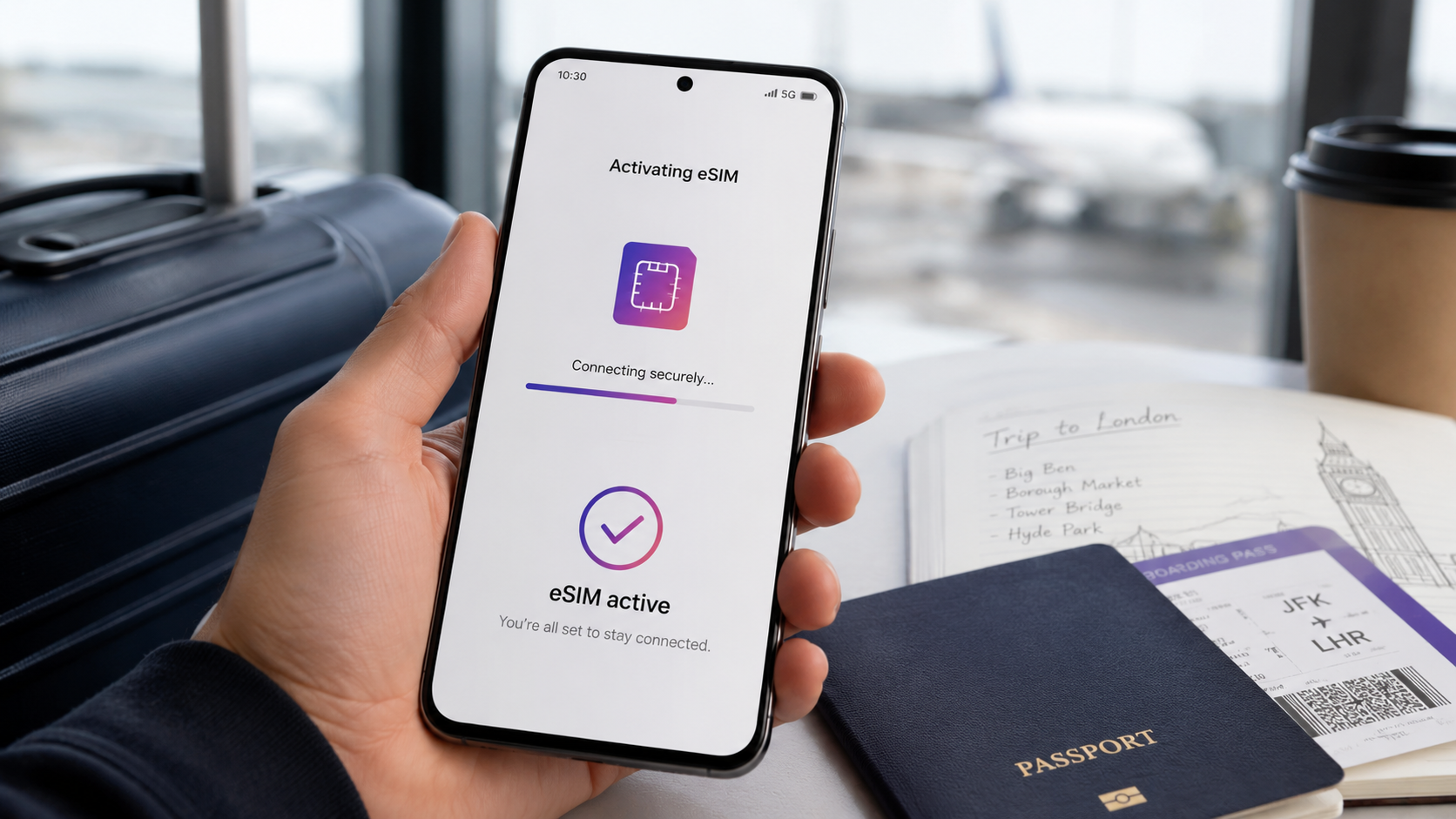
Traveler activating an eSIM on an Android phone before an international trip
How to Activate an eSIM on Android: Step-by-Step Travel Guide
Activating an eSIM on Android before you travel is one of the easiest ways to prepare mobile data for your trip. Instead of buying a physical SIM card after arrival or relying on expensive roaming, you can install a digital eSIM plan and use mobile data abroad on your compatible Android phone.
Because Android phones are made by different brands, the exact setup steps can vary. A Samsung Galaxy may use different menu names than a Google Pixel, Motorola, Xiaomi, Oppo, Sony, or another Android device. The general process is still similar: check compatibility, install the eSIM, select it for mobile data, and adjust your roaming settings before using it abroad.
This guide explains how to activate an eSIM on Android, including Samsung Galaxy and Google Pixel steps, plus important travel settings to check before departure.
What is an eSIM on Android?
An eSIM is a digital SIM built into your phone. Instead of inserting a physical SIM card, you install a mobile plan digitally on your device.
For travel, an eSIM lets you add a prepaid data plan for your destination. You can keep your regular SIM card in your Android phone and use the travel eSIM for mobile data abroad.
A travel eSIM can be used for maps, messaging apps, hotel bookings, ride-hailing apps, translation tools, email, browsing, social media, and other online travel services.
If you are new to eSIM technology, start with our guide explaining what a travel eSIM is and how it works.
Why activate your Android eSIM before you travel?
It is usually best to install and prepare your eSIM before departure while you have stable Wi-Fi. This gives you time to complete the setup, check your Android settings, and avoid stress after landing.
Activating your eSIM before you travel can help you:
- prepare mobile data before arrival
- avoid searching for a local SIM card abroad
- keep your regular SIM card in your phone
- reduce dependence on public Wi-Fi
- avoid expensive roaming data
- use maps, messages, bookings, and transport apps abroad
- fix setup issues before your trip starts
If you wait until you arrive, you may need airport Wi-Fi or hotel Wi-Fi to complete the setup. That can be difficult if the connection is slow, unstable, or unavailable.
Check if your Android phone supports eSIM
Before buying or activating a travel eSIM, make sure your Android phone supports eSIM. Many newer Samsung Galaxy, Google Pixel, Motorola, Sony, Huawei, Oppo, Xiaomi, and other Android models support eSIM, but compatibility depends on the exact model, region, carrier lock status, and software version.
You can check if your Android phone supports eSIM before choosing a plan.
Your phone should also be unlocked. If your Android device is locked to one mobile operator, it may not accept another eSIM plan. If you are unsure, contact your mobile operator before buying a travel eSIM.
Choose the right Android eSIM plan
Before installation, choose a plan that fits your trip. The right eSIM plan depends on your destination, route, trip length, and expected data use.
If you are visiting one country, a country-specific eSIM may be enough. If you are visiting several countries, a regional or global eSIM may be more practical.
You can browse duasim eSIM plans by destination and choose a prepaid plan that matches your travel route.
Before buying, check:
- destination coverage
- data amount
- validity period
- when the plan activates
- whether hotspot is supported
- whether your Android phone supports eSIM
- whether your phone is unlocked
If you are unsure how much data to choose, read our guide on how much mobile data you need when traveling abroad.
What you need before activating an eSIM on Android
Before you start the setup, make sure you have everything ready.
You need:
- an eSIM-compatible Android phone
- an unlocked device
- a stable Wi-Fi connection
- your eSIM QR code or activation details
- enough battery or a charger nearby
- updated Android software
- your travel destination plan
It is also helpful to keep your eSIM QR code open on another device, such as a laptop or tablet, so you can scan it with your phone. If the QR code is on the same phone, your Android device may allow you to select the QR code from your gallery, use manual activation details, or install through another supported method.
How to activate an eSIM on Samsung Galaxy
Samsung Galaxy phones usually use the SIM manager menu for eSIM setup.
To activate an eSIM on Samsung Galaxy:
- Connect your phone to Wi-Fi.
- Open Settings.
- Tap Connections.
- Tap SIM manager.
- Tap Add eSIM.
- Choose Scan QR code or a similar option.
- Scan the QR code provided with your eSIM.
- Follow the on-screen instructions.
- Label the eSIM clearly, for example “Travel” or “duasim”.
- Select the eSIM for mobile data when you are ready to use it.
Menu names can vary slightly depending on your Samsung model and software version. If you do not see Add eSIM, your device may not support eSIM, may need a software update, or may have regional or carrier restrictions.
How to activate an eSIM on Google Pixel
Google Pixel phones usually place eSIM setup under Network & internet settings.
To activate an eSIM on Google Pixel:
- Connect your Pixel to Wi-Fi.
- Open Settings.
- Tap Network & internet.
- Tap SIMs.
- Tap Add SIM.
- Choose Set up an eSIM.
- Scan your eSIM QR code or follow the on-screen setup instructions.
- Add the eSIM to your phone.
- Label the eSIM clearly.
- Select it for mobile data when you are ready to use it.
If your Pixel does not show the eSIM setup option, check whether your exact model supports eSIM and whether your phone is unlocked.
How to activate an eSIM on other Android phones
Other Android phones may use slightly different menu names, but the setup is usually similar.
Try looking under:
- Settings > Network & internet
- Settings > Connections
- Settings > Mobile network
- Settings > SIMs
- Settings > SIM manager
- Add SIM
- Add eSIM
- Download SIM
- Add mobile plan
A general Android setup process is:
- Connect to Wi-Fi.
- Open Settings.
- Go to your SIM or mobile network settings.
- Look for Add eSIM, Add SIM, Download SIM, or Add mobile plan.
- Scan your eSIM QR code or enter activation details manually.
- Follow the on-screen instructions.
- Label the eSIM.
- Select it for mobile data when needed.
Because Android settings vary by brand, use the wording closest to your device.
How to activate an eSIM with a QR code on Android
Many travel eSIMs are installed using a QR code. This is one of the most common ways to add an eSIM to an Android phone.
To activate an Android eSIM with a QR code:
- Connect your phone to stable Wi-Fi.
- Open your SIM or mobile network settings.
- Choose Add eSIM, Add SIM, or Add mobile plan.
- Select Scan QR code if available.
- Scan the QR code provided with your eSIM.
- Follow the on-screen instructions.
- Add the eSIM to your device.
- Label it clearly.
- Choose whether to use it for mobile data.
After installation, avoid deleting the eSIM unless you are sure you no longer need it. Removing an eSIM can delete the installed profile from your phone.
How to activate an eSIM manually on Android
If you cannot scan the QR code, some Android phones allow manual setup using activation details.
Manual setup may be useful if:
- the QR code is displayed on the same phone
- your camera cannot scan the QR code
- your phone supports manual activation details
- you received an activation code or SM-DP+ address
To install manually, go to your eSIM setup screen and look for an option such as Enter details manually, Use activation code, or similar wording. Then enter the details provided with your eSIM and follow the on-screen instructions.
Not every Android device shows the same manual setup options, so check your device settings if needed.
How to label your travel eSIM on Android
After installing your eSIM, label it clearly so you know which SIM is used for travel data and which one is your normal line.
You can label your regular SIM as:
- Primary
- Main
- Home
- Personal
You can label your travel eSIM as:
- Travel
- duasim
- Europe
- Data
- Destination name
Clear labels help you avoid selecting the wrong SIM for mobile data abroad.
Which SIM should you use for mobile data?
When traveling, you usually want your travel eSIM selected for mobile data. Your regular SIM can often stay active for calls or SMS if you want to keep your normal number available.
Before using data abroad, check your Android settings and make sure:
- your travel eSIM is selected for mobile data
- your primary SIM is not selected for data roaming
- automatic data switching is off if you want to avoid accidental roaming
- data roaming is enabled only where needed
- your eSIM line is turned on
This setup helps reduce the risk of using expensive roaming data from your home mobile plan.
Should data roaming be on or off on Android?
This depends on which SIM line you are talking about.
For your primary SIM, data roaming should usually be off if you want to avoid roaming charges from your home operator.
For your travel eSIM, data roaming may need to be on for the eSIM to connect to supported networks abroad. This depends on the plan and activation instructions.
A simple rule:
- primary SIM data roaming: usually off
- travel eSIM data roaming: on if required by your eSIM instructions
If your Android phone has multiple SIM lines, check carefully that the correct line is using mobile data.
Can you keep your normal SIM active?
Yes, in many cases you can keep your normal SIM active while using a travel eSIM for mobile data. This is useful if you need to receive calls, SMS, or bank verification messages on your normal number.
However, keeping your regular SIM active can still create costs if you use calls, SMS, voicemail, or roaming data from your home operator.
To reduce the risk of unexpected charges:
- select your travel eSIM for mobile data
- turn off data roaming on your primary SIM
- avoid using traditional calls or SMS if they are expensive abroad
- use internet-based messaging and calling apps when possible
- check your operator’s roaming rules before travel
For more practical tips, read our guide on how to avoid roaming charges when traveling abroad.
When should you activate your Android eSIM?
Installation and activation are not always the same thing. In many cases, you can install your eSIM before departure and start using it when you arrive.
However, activation rules can vary by plan. Some eSIM plans may start when installed, while others may start when they first connect to a supported network in the destination.
Before installing your eSIM, check the plan details so you understand when the validity period begins.
A safe approach is to:
- buy your eSIM before departure
- install it while connected to Wi-Fi
- keep it turned off if you are not ready to use it
- turn it on when you are ready to connect abroad
- check the activation rules for your specific plan
If you need help, visit the duasim eSIM FAQ and support page.
What to do when you arrive abroad
When you arrive at your destination, check your Android settings before using mobile data heavily.
After arrival:
- Turn on your travel eSIM line.
- Select the eSIM for mobile data.
- Enable data roaming for the eSIM line if required.
- Keep data roaming off on your primary SIM.
- Wait for your phone to connect to a supported network.
- Test mobile data with maps, browsing, or messaging.
If mobile data does not work immediately, try turning airplane mode on and off, restarting your phone, or checking network selection.
What if your Android eSIM does not install?
If your eSIM does not install, check the basics before deleting anything.
Common reasons an eSIM may not install include:
- your Android phone does not support eSIM
- your phone is locked to one operator
- your device is not connected to stable Wi-Fi
- the QR code has already been used
- activation details were entered incorrectly
- your software needs an update
- your device has regional restrictions
- the eSIM was removed after installation
Try restarting your phone, checking Wi-Fi, updating your software, and confirming compatibility. You can also visit the duasim eSIM FAQ and support page for support.
What if the eSIM installs but mobile data does not work?
If your eSIM installs but mobile data does not work, the issue is often related to settings.
Check that:
- the eSIM line is turned on
- the eSIM is selected for mobile data
- data roaming is enabled for the eSIM if required
- your primary SIM is not selected for data
- your destination is covered by the plan
- your plan has started
- you still have data remaining
- airplane mode is off
- your phone has connected to a supported network
You can also try restarting your phone or manually selecting a network if your device allows it.
Can you use hotspot with an Android travel eSIM?
Hotspot availability depends on your eSIM plan, Android phone, and network support. If hotspot is supported, you can share your mobile data with another device such as a laptop or tablet.
Be careful with hotspot while traveling because connected devices can use data quickly. Laptops may sync files, update software, load full websites, or download attachments automatically.
If hotspot is important for your trip, choose a data plan with enough allowance and monitor usage carefully.
How much data do you need for Android travel?
The right amount of data depends on how you use your Android phone abroad.
Light users may only need a small data plan for maps, messages, and browsing. Moderate users may need more data for social media, travel apps, email, and occasional video calls. Heavy users may need a larger plan for hotspot, remote work, streaming, or frequent uploads.
As a simple guide:
- 1 GB to 3 GB: short trips and light use
- 3 GB to 10 GB: regular travel use
- 10 GB to 20 GB: longer trips, hotspot, and frequent app use
- 20 GB or more: remote work, heavy hotspot, streaming, or long stays
To choose more confidently, read our guide on how much mobile data you need when traveling abroad.
Android eSIM vs roaming
Using an Android eSIM for travel can be a good alternative to traditional roaming. Roaming uses your home mobile plan abroad, while a travel eSIM gives you a separate prepaid data plan for your destination.
A travel eSIM may give you more control because you choose the data amount and destination before using it. Roaming can be convenient, but costs may vary depending on your operator and destination.
If you are comparing both options, read our guide to eSIM vs roaming for international travel.
Why choose duasim for your Android travel eSIM?
duasim is designed for travelers who want a simple way to get mobile data abroad without changing physical SIM cards or depending on traditional roaming. You can choose a prepaid eSIM plan before your trip, install it digitally on your Android phone, and use mobile data while traveling.
With duasim, you can:
- check Android eSIM compatibility
- browse prepaid eSIM plans for destinations worldwide
- choose country, regional, or global coverage
- install your eSIM digitally
- keep your regular SIM card in your phone
- use mobile data abroad without changing plastic SIM cards
- manage your travel connectivity more easily
For easier access on your phone, you can also download the duasim app and manage your eSIMs while traveling.
Conclusion: activate your Android eSIM before you leave
Activating an eSIM on Android before you travel can make your trip much easier. Instead of looking for a local SIM card after arrival or depending on expensive roaming, you can prepare your mobile data in advance and connect when you need it.
Before buying a plan, check that your Android phone supports eSIM and is unlocked. Then choose a prepaid eSIM plan that fits your destination, trip length, and data needs. Install it while connected to stable Wi-Fi, label your lines clearly, and make sure your travel eSIM is selected for mobile data when you are abroad.
Because Android menus vary between brands, the exact setup may look different on Samsung, Google Pixel, Motorola, Xiaomi, Oppo, Sony, and other devices. The goal is the same: add the eSIM, select it for mobile data, and control roaming settings carefully.
Before your next trip, you can check your Android eSIM compatibility, then choose a prepaid eSIM plan for your destination.
FAQ: Activating an eSIM on Android
How do I activate an eSIM on Android?
To activate an eSIM on Android, connect to Wi-Fi, open your SIM or mobile network settings, choose Add eSIM, Add SIM, or Add mobile plan, scan your eSIM QR code, and follow the on-screen instructions.
How do I activate an eSIM on Samsung Galaxy?
On many Samsung Galaxy phones, go to Settings, tap Connections, tap SIM manager, tap Add eSIM, then scan your QR code or follow the setup instructions.
How do I activate an eSIM on Google Pixel?
On many Google Pixel phones, go to Settings, tap Network & internet, tap SIMs, tap Add SIM, choose Set up an eSIM, then scan your QR code or follow the on-screen instructions.
Can I activate an eSIM on Android before traveling?
Yes. It is usually best to install your eSIM before traveling while you have stable Wi-Fi. Then you can select it for mobile data when you are ready to use it abroad.
Does every Android phone support eSIM?
No. Not every Android phone supports eSIM. Support depends on the device model, region, carrier lock status, and software version. You can use the duasim eSIM compatibility checker to check your device.
Should data roaming be on for an Android eSIM?
Data roaming should usually be off for your primary SIM if you want to avoid roaming charges. For your travel eSIM, data roaming may need to be on if required by the plan instructions.
Can I keep my normal SIM active while using an Android eSIM?
Yes, in many cases. Many Android phones allow you to keep your regular SIM active while using a travel eSIM for mobile data.
Where can I buy an Android travel eSIM?
You can browse duasim prepaid eSIM plans and choose a country, regional, or global plan for your trip.