
eSIM QR Code Not Working? Common Fixes Before You Travel
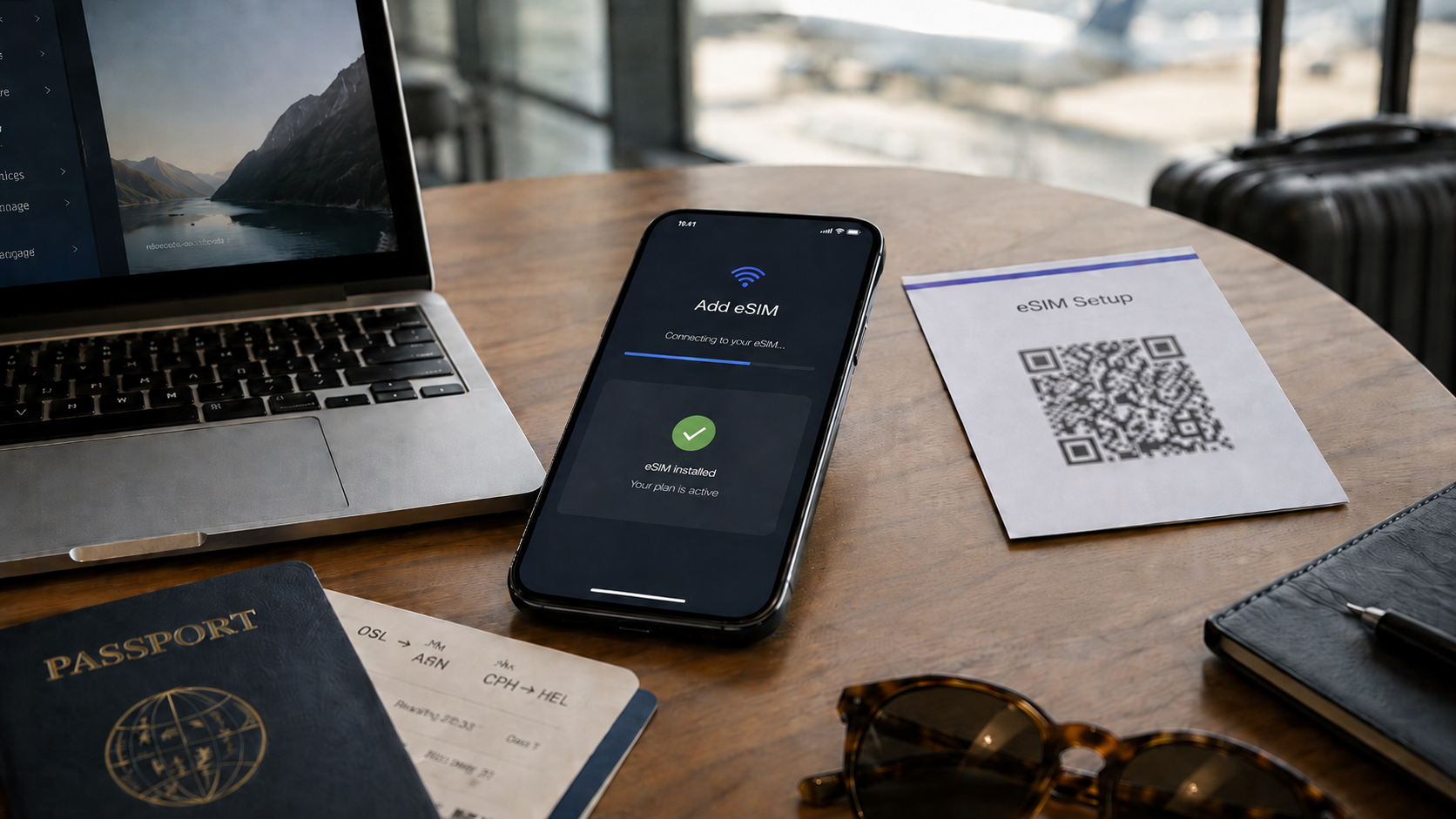
Traveler fixing an eSIM QR code issue on a smartphone before a trip
eSIM QR Code Not Working? Common Fixes Before You Travel
Trying to install your travel eSIM but the eSIM QR code is not working? It can be frustrating, especially when you are preparing for a trip and want mobile data ready before you fly.
The good news is that many eSIM QR code problems are caused by simple setup issues. Your phone may not be connected to Wi-Fi, the QR code may already have been used, your device may not support eSIM, your phone may be locked to another carrier, or you may be scanning the code from the wrong place.
This guide explains the most common reasons an eSIM QR code fails, how to fix the problem on iPhone and Android, and what to check before traveling. It is written for travelers who want easy eSIM setup and reliable mobile data abroad without changing physical SIM cards.
If you are new to eSIM technology, start with our guide explaining what a travel eSIM is and how it works. It explains the basics of digital SIM cards, eSIM installation, activation, and using mobile data abroad.
Quick checklist: what to check first
Before trying advanced fixes, start with these basics:
Check | Why it matters |
|---|---|
Stable Wi-Fi connection | Your phone usually needs internet to download the eSIM profile |
eSIM-compatible phone | Not all phones support eSIM |
Unlocked device | A carrier-locked phone may reject another provider’s eSIM |
Unused QR code | Many eSIM QR codes can only be installed once |
Correct phone settings | iPhone, Samsung and Pixel use different setup paths |
Updated software | Older software can sometimes cause setup issues |
Good camera view | A blurry, cropped or low-quality QR code may not scan |
Correct destination plan | The plan must match the country or region you need |
If you have not checked compatibility yet, use the duasim compatibility checker before trying again.
Why your eSIM QR code may not be working
An eSIM QR code is not just a normal website QR code. It contains activation information that lets your phone download and install a mobile data profile. If something interrupts that process, the setup can fail.
Common reasons include:
- Your phone does not support eSIM.
- Your phone is locked to your home carrier.
- You are not connected to Wi-Fi.
- The QR code has already been scanned or installed.
- The QR code is blurry, cropped or too small.
- You are scanning the code with the wrong app or wrong phone.
- Your iOS or Android software needs an update.
- You are trying to install the eSIM on a different device.
- Your phone already has too many active eSIM profiles.
- The eSIM is installed, but not selected for mobile data.
- The plan has not connected because you are not in the covered destination yet.
The fix depends on which part of the process failed: scanning, installing, activating, or connecting.
Problem 1: Your phone does not support eSIM
If the option to add an eSIM does not appear on your phone, your device may not support eSIM.
Before buying or installing a travel eSIM, check that your phone is eSIM-compatible. You can use the duasim compatibility checker, or read our guide to eSIM compatible phones.
How to check on iPhone
On iPhone:
- Open Settings.
- Tap Cellular or Mobile Data.
- Look for Add eSIM.
- You can also go to Settings > General > About and check for eSIM information.
If you do not see an eSIM option, your iPhone model, region, or carrier settings may not support eSIM.
How to check on Android
On Android, the wording depends on the phone brand. Look for options such as:
- Add eSIM
- Add mobile plan
- Download a SIM
- Set up an eSIM
- SIM manager
- SIMs
If you use Samsung or Google Pixel, the sections below explain the setup paths in more detail.
Problem 2: Your phone is locked to another carrier
Even if your phone supports eSIM, it may still be locked to your mobile provider. A locked phone may not allow you to install or use a travel eSIM from another provider.
This is one of the most important things to check before buying a travel eSIM.
On iPhone, you can usually check this by going to:
Settings > General > About > Carrier Lock
If your iPhone is unlocked, it should show No SIM Restrictions.
On Android, the wording can vary by brand and carrier. If you are unsure, contact your mobile provider and ask if your phone is unlocked for other SIMs and eSIMs.
Problem 3: You are not connected to Wi-Fi
Your phone usually needs a stable internet connection to download and install the eSIM profile. If your Wi-Fi is weak, blocked, slow, or unstable, the setup may fail.
Try this:
- Connect to a reliable Wi-Fi network.
- Turn off VPN temporarily if it causes setup problems.
- Restart your phone.
- Try scanning the eSIM QR code again.
- Avoid public Wi-Fi networks that require login pages or have restrictions.
For travel eSIMs, it is usually best to install before departure while you have reliable Wi-Fi at home, work, or your hotel.
Problem 4: The QR code has already been used
Many eSIM QR codes can only be used once. If you already scanned and installed the eSIM on one device, you may not be able to install the same eSIM again on another phone.
This can happen if:
- You scanned the QR code during testing.
- You installed it on the wrong phone.
- You deleted the eSIM after installation.
- You tried to transfer it to another device.
- You shared the QR code with someone else.
Before deleting an installed eSIM, make sure you no longer need it. Some eSIMs cannot be reinstalled after deletion without a new activation code or support help.
Because eSIMs are digital products, always check compatibility and setup instructions before scanning the QR code.
Problem 5: You are scanning the QR code incorrectly
Sometimes the QR code itself is fine, but the phone cannot read it properly.
Try these fixes:
- Increase screen brightness on the device showing the QR code.
- Make sure the full QR code is visible.
- Do not scan a cropped screenshot.
- Clean your phone camera.
- Hold the phone steady.
- Move closer or farther away.
- Avoid glare or reflections.
- Open the QR code on a second screen if possible.
- Print the QR code if needed.
- Try manual installation if available.
If the QR code is on the same phone you are trying to install the eSIM on, scanning may be difficult. In that case, open the QR code on another device, use app-based setup if available, or use manual details if your provider gives them.
Problem 6: You are using the wrong setup path
Different phones use different eSIM setup menus. Using the correct setup path can solve many QR-code problems.
How to fix eSIM QR code issues on iPhone
If your eSIM QR code is not working on iPhone, try this:
- Connect your iPhone to stable Wi-Fi.
- Open the Camera app.
- Scan the eSIM QR code.
- Tap the mobile plan notification.
- Tap Continue.
- Tap Add eSIM or Add Mobile Plan.
- Follow the on-screen instructions.
- Label the eSIM clearly, such as “Travel Data.”
- Set it as your mobile data line when needed.
If scanning with the Camera app does not work, try:
- Open Settings.
- Tap Cellular or Mobile Data.
- Tap Add eSIM.
- Choose QR-code setup or manual details if available.
If you use iPhone, follow the full guide on how to install an eSIM on iPhone before you travel.
How to fix eSIM QR code issues on Samsung
On Samsung Galaxy phones, the menu names can vary slightly by region and software version, but the setup is usually found under SIM settings.
Try this:
- Open Settings.
- Tap Connections.
- Tap SIM manager or SIM card manager.
- Tap Add eSIM or Add mobile plan.
- Choose Scan QR code.
- Scan the eSIM QR code.
- Follow the on-screen instructions.
- Select the eSIM for mobile data when you travel.
If the QR code still does not work, restart the phone, check Wi-Fi, update your software, and confirm your device supports eSIM.
How to fix eSIM QR code issues on Google Pixel
On Google Pixel, try this setup path:
- Open Settings.
- Tap Network & internet.
- Tap SIMs.
- Tap Add SIM.
- Tap Set up an eSIM.
- Scan the QR code or follow the on-screen instructions.
If setup fails, check that the phone is connected to Wi-Fi, updated, unlocked, and compatible. If the QR code has already been used, you may need support from your provider.
If you use Android, read the full guide on how to activate an eSIM on Android.
Problem 7: The eSIM is installed but mobile data does not work
Sometimes the QR code works and the eSIM installs successfully, but mobile data does not connect. In that case, the issue is usually not the QR code. It may be a data-line, roaming, APN, or destination coverage issue.
Try this:
- Make sure the eSIM is turned on.
- Set the travel eSIM as your mobile data line.
- Turn data roaming on for the eSIM if the plan instructions require it.
- Turn data roaming off on your main SIM if you want to avoid home-carrier roaming.
- Restart your phone.
- Turn airplane mode on and off.
- Check that you are in a destination covered by the plan.
- Wait a few minutes after arrival for the network to register.
- Check whether the eSIM plan has started or needs activation.
If you installed before departure, the eSIM may not connect until you arrive in the covered destination.
Problem 8: Your phone has too many eSIM profiles
Some phones can store multiple eSIM profiles, but there may still be limits. If your phone has several old eSIMs, setup can become confusing.
You can remove old eSIMs you no longer need, but be careful. Do not delete a current travel eSIM unless you are finished using it, because some eSIMs cannot be reinstalled after deletion.
Before deleting anything, make sure you know which line is your main SIM, which one is your active travel eSIM, and which plans are expired.
Problem 9: Your eSIM has not started yet
Some travel eSIM plans start when installed. Others start when activated or when they first connect to a supported network. This depends on the plan.
If your eSIM is installed but not connecting before travel, it may be because you are not yet in the covered destination. Check the plan instructions before assuming the QR code failed.
A useful travel habit is:
- Buy your eSIM before travel.
- Check when validity starts.
- Install it on Wi-Fi before departure if allowed.
- Activate or connect according to the plan instructions.
- Set it as your mobile data line when you arrive.
How to avoid eSIM QR code problems before travel
You can reduce the risk of setup issues by preparing early.
Before your trip:
- Check if your phone supports eSIM.
- Confirm your phone is unlocked.
- Update your phone software.
- Buy the correct country, regional, or global plan.
- Install your eSIM while connected to reliable Wi-Fi.
- Save the QR code and setup details.
- Do not delete the eSIM after installing it.
- Label your eSIM clearly.
- Check which SIM line is used for mobile data.
- Keep your provider’s support and FAQ page ready.
If you are not sure which plan to choose, read best eSIM for travel: how to choose the right plan before you fly.
When to use the duasim app
The duasim app can make travel eSIM management easier because your eSIMs, data usage, alerts, and activation details can be managed in one place.
Use the duasim app if you want to:
- Manage your eSIMs
- View your plans
- Receive data usage alerts
- Keep travel data easier to control
- Access setup details while preparing for your trip
For general setup and troubleshooting questions, visit the duasim FAQ.
FAQ: eSIM QR code not working
Why is my eSIM QR code not working?
Your eSIM QR code may not work if your phone is not eSIM-compatible, your phone is locked, Wi-Fi is unstable, the QR code was already used, the code is blurry, or you are using the wrong setup path.
Can I scan an eSIM QR code twice?
Many eSIM QR codes can only be used once. If the eSIM has already been installed on one device, the same QR code may not work again on another device.
What should I do if my iPhone will not scan the eSIM QR code?
Connect to Wi-Fi, open the Camera app, scan the QR code, and follow the mobile plan notification. If that does not work, go to Settings > Cellular or Mobile Data > Add eSIM and try setup from there.
What should I do if my Android will not scan the eSIM QR code?
Open your SIM settings and look for Add eSIM, Add SIM, Add mobile plan, or Set up an eSIM. On Samsung, check Settings > Connections > SIM manager. On Pixel, check Settings > Network & internet > SIMs > Add SIM.
Why is my eSIM installed but not connecting?
The eSIM may not be selected for mobile data, data roaming may need to be enabled on the eSIM line, you may not be in the covered destination yet, or your phone may need a restart.
Can I delete and reinstall my eSIM?
Be careful. Some eSIMs cannot be reinstalled after deletion. Do not delete your eSIM unless you are finished using it or support tells you to do so.
Do I need Wi-Fi to install an eSIM?
Usually, yes. Your phone normally needs internet access to download the eSIM profile, so install your eSIM on a stable Wi-Fi connection before travel.
How can I avoid eSIM setup problems before my trip?
Check compatibility, confirm your phone is unlocked, install on reliable Wi-Fi, use the correct setup guide for your device, and do not delete the eSIM after installation.
Conclusion: Fix your eSIM QR code before you travel
If your eSIM QR code is not working, do not panic. Most issues come from compatibility, Wi-Fi, device lock, setup path, QR-code quality, or activation timing. Start with the basics: check that your phone supports eSIM, connect to stable Wi-Fi, make sure your device is unlocked, and follow the correct setup steps for iPhone, Samsung, Pixel, or Android.
If the eSIM is already installed but mobile data does not work, check that the travel eSIM is selected for mobile data, follow the plan instructions, and make sure you are in a covered destination.
Before your next trip, check your phone with the duasim compatibility checker, follow the right setup guide for iPhone or Android, and use the duasim FAQ if you need help getting your travel data ready before departure.